
Wireless printing has become a common feature in homes, offices, and educational environments. Instead of relying on a physical cable connection, many modern printers can communicate through a wireless network, allowing users to print documents from computers, smartphones, tablets, and other connected devices.
While wireless printing offers flexibility and convenience, many users are unfamiliar with how the connection process actually works. Understanding the basics of wireless networking can make it easier to recognize why a printer appears on a network, how devices locate the printer, and what factors may affect communication between devices.
This guide explains how printers connect to wireless networks, the technologies involved, and the key factors that help maintain a reliable connection.
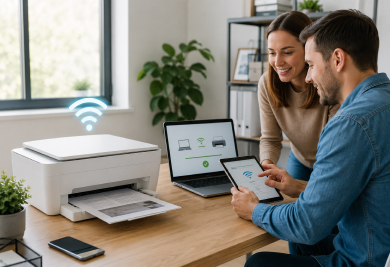
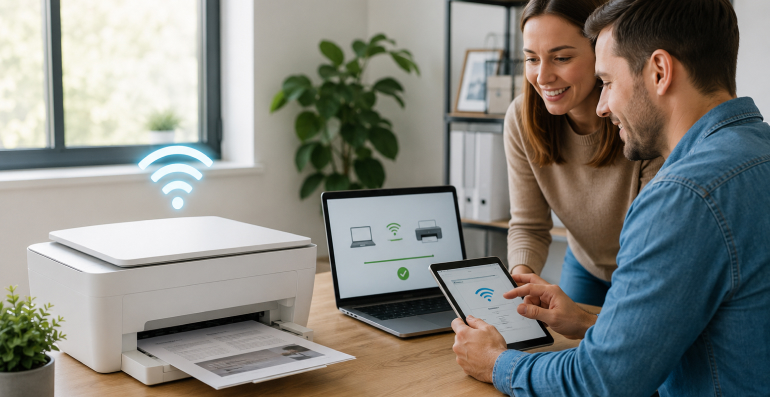
A wireless printer connection allows a printer to communicate with other devices through a Wi-Fi network rather than a direct cable connection.
When connected wirelessly, the printer becomes part of the same network used by computers, smartphones, tablets, and other devices. This enables multiple users to access the printer without physically connecting to it.
Wireless connections are commonly used because they offer:
Instead of sending information through a USB cable, print data travels across the wireless network to reach the printer.
A wireless network acts as a communication pathway between connected devices.
In a typical setup, a router creates a Wi-Fi network that allows devices to exchange information. When a printer joins the network, it receives a unique network address that helps other devices identify and communicate with it.
The process generally involves:
As long as the printer and the device sending the print job are connected to the same network, communication can typically take place.
Different printer models may use different methods to establish a wireless connection.
Many printers include a setup wizard on the printer display.
This method typically allows users to:
Once completed, the printer attempts to join the selected Wi-Fi network.
Some routers support Wi-Fi Protected Setup (WPS).
With this method, the printer and router exchange connection information automatically when the appropriate buttons are activated within a short period.
This can simplify the setup process by reducing the need for manual network entry.
Certain printers allow wireless settings to be configured through a temporary USB connection.
After network information is transferred, the printer can communicate wirelessly without requiring a cable.
Many printers support configuration through mobile applications.
These applications may guide users through the connection process and assist in locating the printer on the network.
After joining the network, a printer must become visible to other devices.
This discovery process helps computers and mobile devices identify available printers.
Discovery may occur through:
When successful, the printer appears within the list of available devices that users can select when printing.
The exact discovery method depends on the operating system, printer capabilities, and network configuration.
When a user selects "Print," several actions occur behind the scenes.
First, the computer or mobile device converts the document into a format the printer can understand.
The information is then sent across the wireless network.
The router directs the data toward the printer, which receives the information and prepares the document for printing.
The printer processes:
Once processing is complete, printing begins.
Although this process usually takes only seconds, larger files may require additional processing time.
Several factors can affect how well a printer communicates with a network.
Wireless signals weaken as distance increases.
Printers located far from the router may experience reduced signal quality.
Walls, furniture, and other physical barriers can also affect signal performance.
A large number of connected devices may increase network activity.
Heavy network usage can sometimes affect communication speed between devices and printers.
Network settings influence how devices communicate.
Changes to wireless settings, passwords, or security protocols may affect printer visibility and connectivity.
Different operating systems and devices may use different discovery methods and communication protocols.
Keeping devices updated can help maintain compatibility.
Many users now print directly from smartphones and tablets.
Wireless printers often support mobile printing technologies that allow devices to send documents, images, and files over the same network.
These technologies simplify printing by eliminating the need for direct cable connections.
As long as the printer and mobile device can communicate through the network, printing can often be initiated directly from the device.
A few simple practices can help support reliable wireless communication.
Consider the following:
These steps can help reduce communication interruptions and improve overall printing consistency.
Yes. A printer connected to a wireless network can often be accessed by multiple compatible devices connected to the same network.
Not always. Many wireless printers can communicate through a local network even if internet access is unavailable.
A network address allows devices to identify and communicate with the printer on the network.
Many wireless printers support mobile printing technologies that allow smartphones and tablets to send print jobs directly.
Yes. A greater distance from the router can reduce signal strength and affect communication quality.
Wireless networking allows printers to communicate with computers, smartphones, tablets, and other devices without requiring a direct cable connection. By joining a Wi-Fi network, a printer becomes part of a connected environment where documents can be shared and printed more conveniently.
Understanding how wireless connections work, how devices discover printers, and what factors influence communication can help users better understand the printing process. Whether used at home or in a workplace, wireless printing continues to provide a flexible and efficient way to manage everyday printing tasks.